Cockpit
One window over every Claude Code and Codex session on your Mac — what each one is about, which ones are waiting on you, and a place to answer them all without opening a single terminal.
What Cockpit is
When you work with coding agents you end up with a dozen conversations in a dozen terminal tabs. Several have finished, one is mid-task, two are waiting for you to answer something, and you cannot tell which is which without reading them. Cockpit is the screen that tells you.
It does not run your agents for you and it does not replace them. Claude Code and Codex already write every conversation to disk as it happens. Cockpit reads those files, works out what each session is about and what state it is in, and draws them as cards you can open, answer, interrupt and file. Your existing sessions appear the first time you launch it — there is nothing to import and nothing to set up.
Everything stays on your Mac. Cockpit is a local app reading local files, with no account and no server. See what leaves your Mac for the exact list.
Installing it
- Open the
.dmgyou downloaded from aidash.dev. - Drag Cockpit into your Applications folder.
- Double-click it.
Every build from 0.1.1 on is signed with a Developer ID and notarised by Apple, so a plain double-click works the first time. If you are on 0.1.0 — the one build that was not — you had to right-click → Open once; update and that stops being true.
What you need
- A Mac running macOS 13 or newer. The build is universal: Apple silicon and Intel, one download.
- Claude Code, Codex, or both — whichever you already use. Cockpit finds them itself. If neither is installed it still opens; there is simply nothing to show yet.
- Nothing else. No account, no sign-in, no API key to get started (a key adds summaries and automatic filing — see Settings).
Updating later
You do not download a second time. Cockpit checks aidash.dev for a newer build, tells you when there is one, and replaces itself when you say so — see Updates & problems.
The first launch
Cockpit asks two questions, once, and never again. The first is which folders to read: it has already found the places the CLIs keep their transcripts — ~/.claude/projects and ~/.codex/sessions — and adding them through the picker is also how macOS grants it access. Cards start appearing behind the panel as soon as you accept.
The second is the two settings — a categoriser key, and which model Cockpit uses for its own short calls — and it is genuinely optional: the panel says so, Not now dismisses it, and everything except summarising and automatic filing works without either. If you already have Claude Code signed in, the model half is answered for you. It is asked after the folders rather than before, so by the time you are deciding, the cards it is talking about are already on screen. See Settings & keys for what each one buys.
Then it reads. A large history takes a few seconds; a very large one (a gigabyte of transcripts is not unusual) takes under a minute. You can use the board while it fills in.
If nothing appears, open Settings (the cog, far right of the top bar) and read This machine at the top. It says in plain words what is installed, what is signed in, which folders it looked at and whether it could read them — which is almost always the whole answer.
The board
The board is the home screen: one card per session, in columns by when it was last touched — today, this week, the past two weeks, last month.
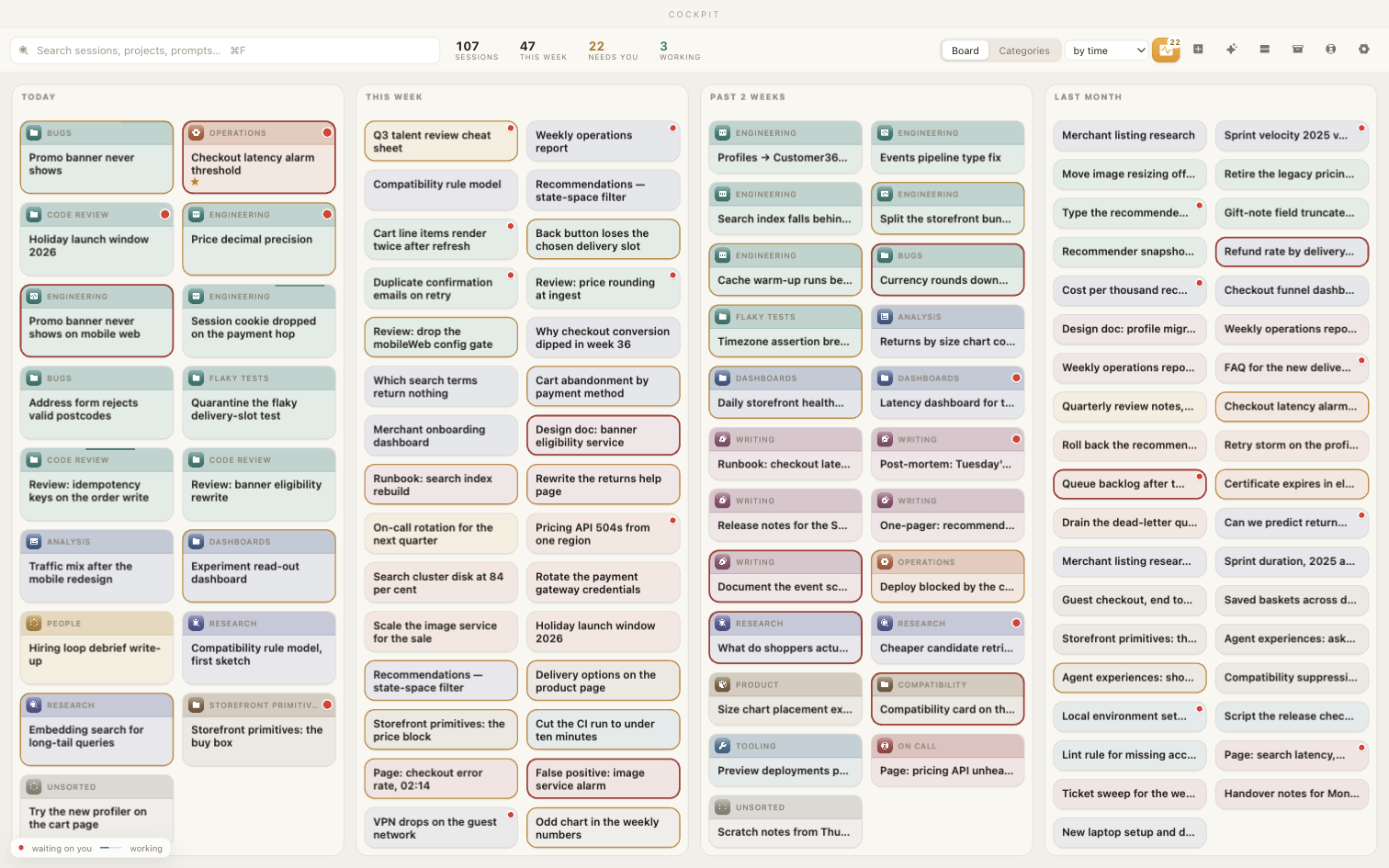
Reading a card
- A red badge in the corner means that session is waiting for you — a permission request or a question. It is the same idea as a notification dot on an iPhone icon, and it is the one thing on the board worth scanning for.
- The icon, top left is the category. Click it to re-file the session from a menu.
- A faded card is done. A card with a moving line across the top has an agent working in it right now.
- The title is what the session is about, not the folder it runs in.
The top bar
| Control | What it does |
|---|---|
| Search ⌘F | Filters the board by title, project, or anything said in a session. |
| Counts | Sessions, this week, needs you, working — click-free status for the whole machine. |
| Board / Categories | Switches between the time layout and the filing view. |
| by time | How the board groups itself: by time, by project, by category, or by group — the frames you have drawn round cards yourself. |
| Attention | The badge-count button: everything waiting on you, in one table. |
| + | Starts a new session. |
| Archive | Sessions you have put away, with a Restore on each. |
| Lifebuoy | The version you are running, updates, and reporting a problem. This is where Check for updates lives — not the cog. |
| Cog | Settings, and the doctor. |
Moving cards
Drag a card anywhere and it stays there. Drag one onto a category in the Categories view to file it. Hover a card for its own menu — Archive to put it away, or open a terminal in its directory.
Several at once: select a range of cards and drag the selection as one gesture, rather than filing them one at a time.
Attention
The point of the app, on one screen. Attention lists only the sessions that need something from you, each with what it was doing, where it got to, and a box to reply in. A round of answers that would have been a dozen terminal tabs is a dozen lines here.
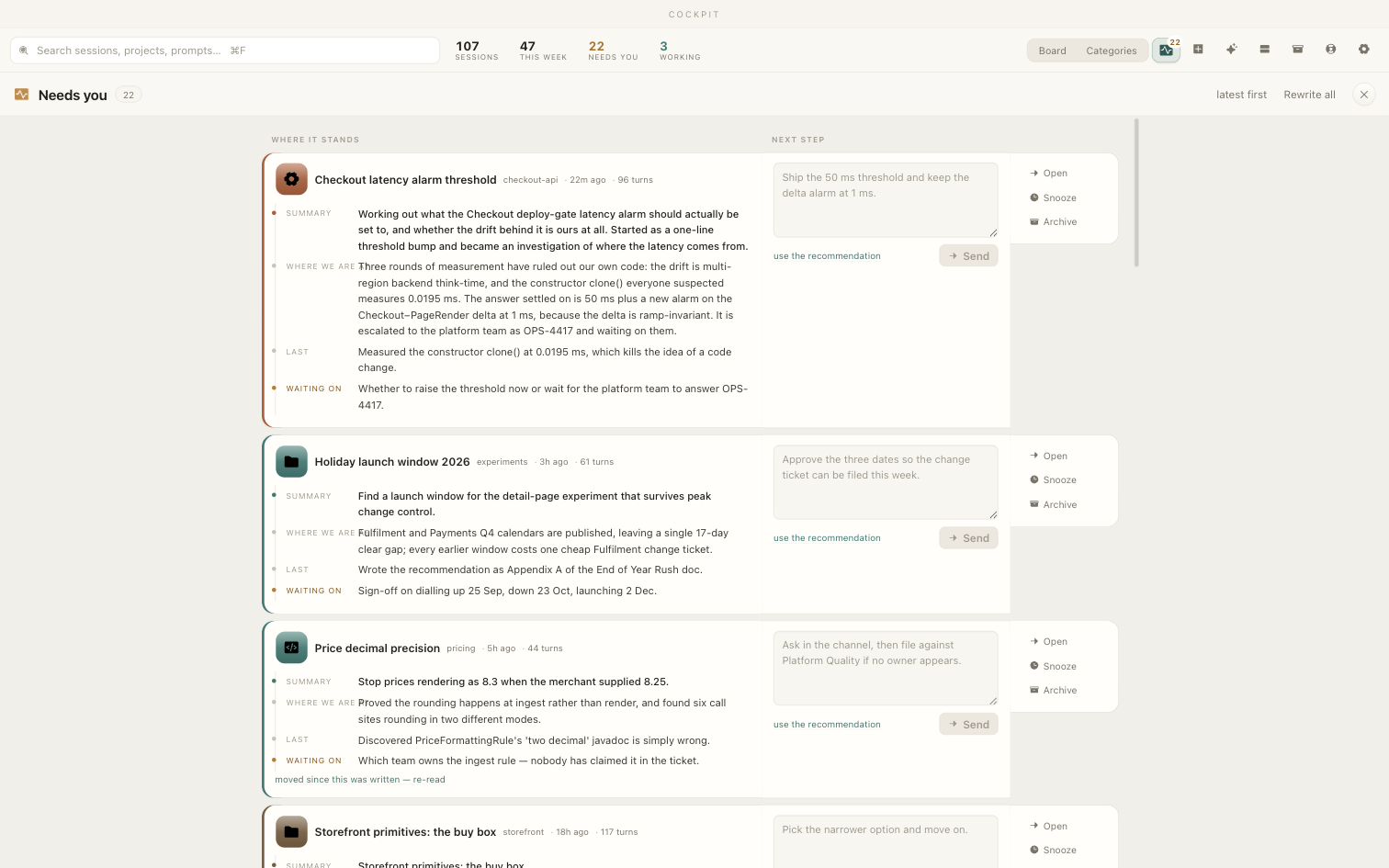
- Type and send to answer without opening anything. ↵ sends.
- Snooze hides a row for a while, for the ones you will deal with later.
- Archive takes it off the board entirely.
- Refresh writes the short "where it got to" prose for rows that have none. That is the one thing here that needs a model — see keys.
Opening a session
Click a card. It opens full-screen, over the board.
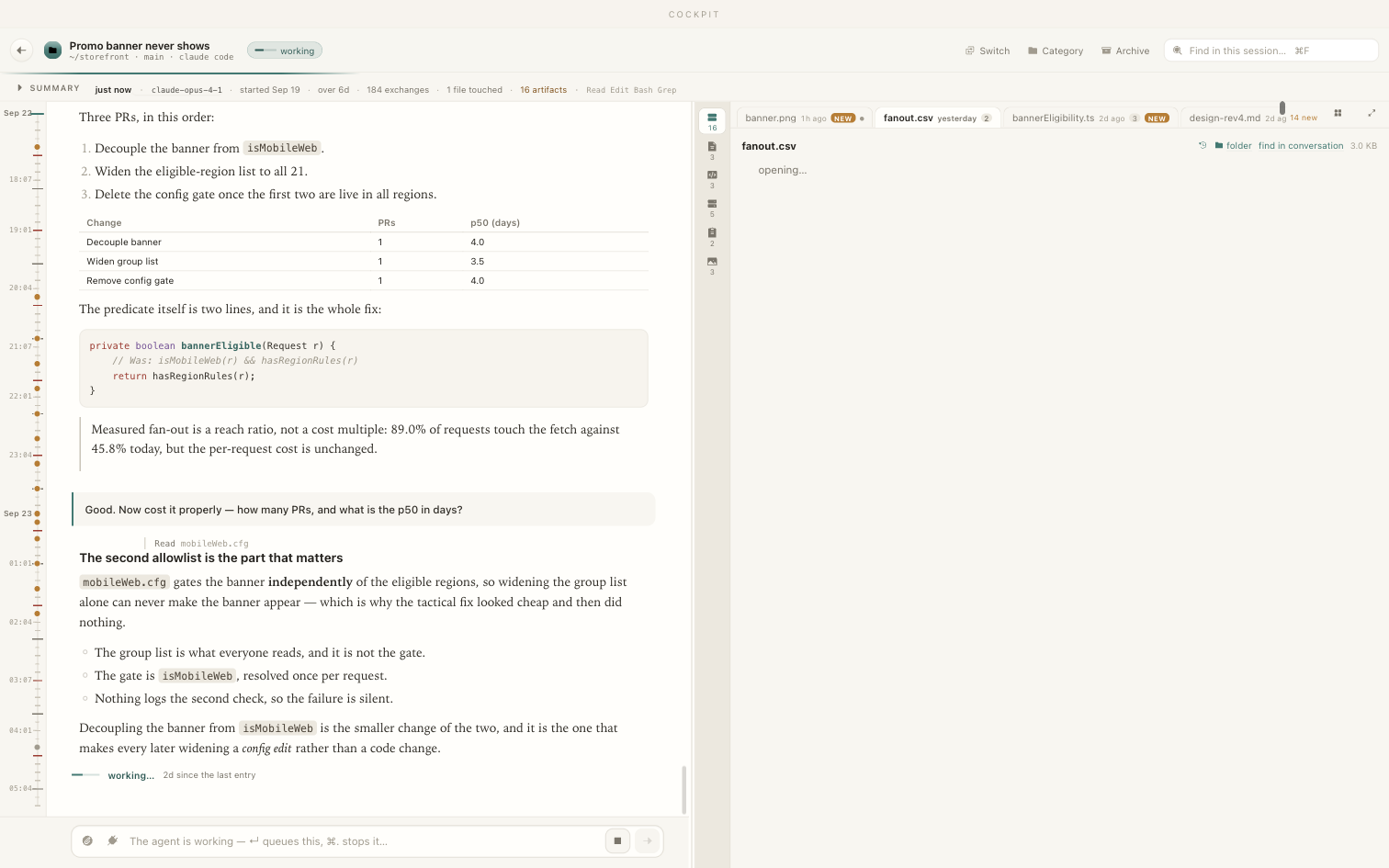
What is on the screen
- Summary and Where we are at, at the top. The first is what this session is about; the second is the state it is in right now. Click the fold to open or close them.
- The conversation, in the middle, formatted to be read rather than scrolled past — headings, lists, tables and code, with what the agent did collapsed down to one line each so the actual reasoning is visible.
-
The files the agent wrote or changed, as tabs. Click one to read it.
Each has a timeline of its own versions: step through it with the dots,
or with ← →, and see what changed between two of them. Markdown,
code, CSV, images and Word
.docxare rendered rather than dumped as text. - Comments on a document. Select any passage in a file and say what should change: the comment, with the passage quoted inside it, goes back to the agent that wrote the file. This is the feature most worth knowing about — it has a section of its own.
- The model it ran on is in the line of facts under the title, and it is a button. Click it to run this session on a different model — see moving a session onto a newer model.
- The rail down the left is the session's own history in time, hours marked, so "what happened this morning" is one click rather than a scroll.
- Find in this session with ⌘F.
Hopping between two sessions
Switch, in the session's top bar, or ⌘J: a short list of the sessions you have touched today, most recent first, with the one you just left pinned at the top. Press a digit to pick a row. Going back and forth between the two things you are actually working on this morning is then the same two keystrokes in both directions, instead of closing the session, finding the other card and opening it.
Moving a session onto a newer model
A conversation is stuck on whichever model it was started with. That is not a Cockpit limitation — the model is an argument to the command that started it, so a session opened in August is still answering on an August model in September, and the only way out used to be to abandon it and start again in a terminal.
Click the model in the fact row. The menu that opens tells you two things that are easy to confuse, and then lets you change the second:
- What this conversation ran on — read out of the transcript itself. History.
- What it will run on from here — your choice, remembered per session. A session you started before this control existed has no choice recorded, and the menu says so rather than pretending the transcript's model was picked.
Pick Opus, Sonnet or Haiku — or press 1–4, as in the Switch menu. Another model… takes an exact id for the cases where you want one specific build. Default clears the choice and hands the decision back to the CLI's own settings.
Why the list is opus and not claude-opus-4-1-20250805
Those short names are aliases, and that is the point: opus means whichever
Opus is current, resolved at the moment the session next starts. Pick it once and the
session keeps up on its own. A dated id is the opposite request — stay on that build for
good — which is a legitimate thing to want and is what Another model… is
for.
What happens on the click depends on whether anything is running, and the menu says which before you press it:
- A turn is in flight — it is stopped and given again, unchanged, on the model you picked. You do not retype anything.
- Nothing is running — nothing is re-sent. Your next message starts the session on the new model. Picking from a menu never makes an agent redo work it already finished.
The choice applies to turns Cockpit starts. A session you also drive from your own terminal keeps whatever model that terminal was started with, until you send from here.
Escape closes it and puts you back on the board, in the same place you left.
Answering
The box across the bottom of an open session types into the real session — the same conversation, the same transcript on disk. There is no separate Cockpit chat.
- ↵ sends. ⇧↵ makes a new line.
- Images: ⌘V anywhere in the conversation column pastes a screenshot in, or drop a file on it, or use the paperclip. They are saved next to the message and the agent is told to go and read them.
- While the agent is working: what you type is queued and sent when the turn ends — it will not interrupt by accident.
- To interrupt on purpose: ⌘. anywhere in the session, or the stop button on the typing line. The agent stops what it is doing; the conversation stays open and you can carry straight on.
A thin line moves across the top of the session while an agent is working, and the conversation says what it is doing — working…, or Compacting when the CLI is shortening its own history. A session with nothing moving is a session waiting for you.
MCP servers, from inside the session
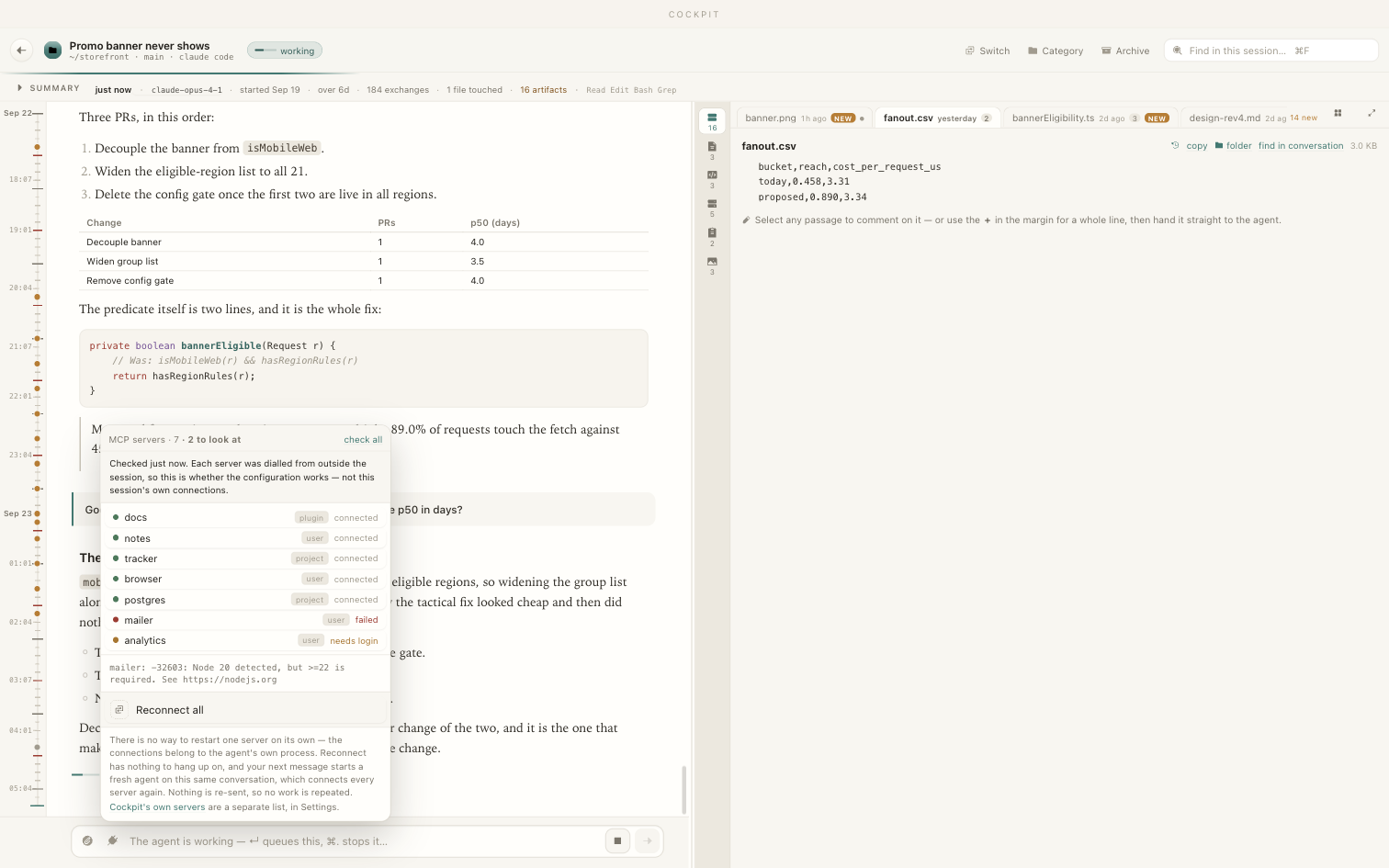
The plug at the left of the typing line lists every MCP server this session has, and turns
red with a dot when one of them is down. It exists because a session Cockpit is driving has
no /mcp screen to open: in a terminal that is where you go when an agent says a
server stopped responding, and there is no terminal here.
-
Each row says where the server came from — user (your
~/.claude.json), project (a.mcp.jsonin the folder), or plugin. Cockpit passes all three through untouched; it adds nothing and hides nothing. - The list opens instantly because it is what the agent itself announced at startup. That is a roster of names, not a health report, and the menu says so: rows read not checked until you ask. check all really connects to every server and can take a minute; clicking one row checks just that one, in about a second.
- A failing server shows its actual error — a missing runtime, an expired login — rather than the word "failed".
- Reconnect all hangs up the channel. Your next message starts a fresh agent on the same conversation, which connects every server again. Nothing is re-sent, so pressing it never makes an agent redo a turn. There is deliberately no per-server restart: the connections belong to the agent's own process and nothing outside it can restart one.
Cockpit's own MCP servers — the ones it calls for plugins and summaries — are a separate list, in Settings → MCP.
Permissions & questions
Both CLIs stop and ask sometimes. Cockpit puts the request in the session and in Attention, and sends your answer back — so a waiting agent is visible instead of being buried in a tab you are not looking at.
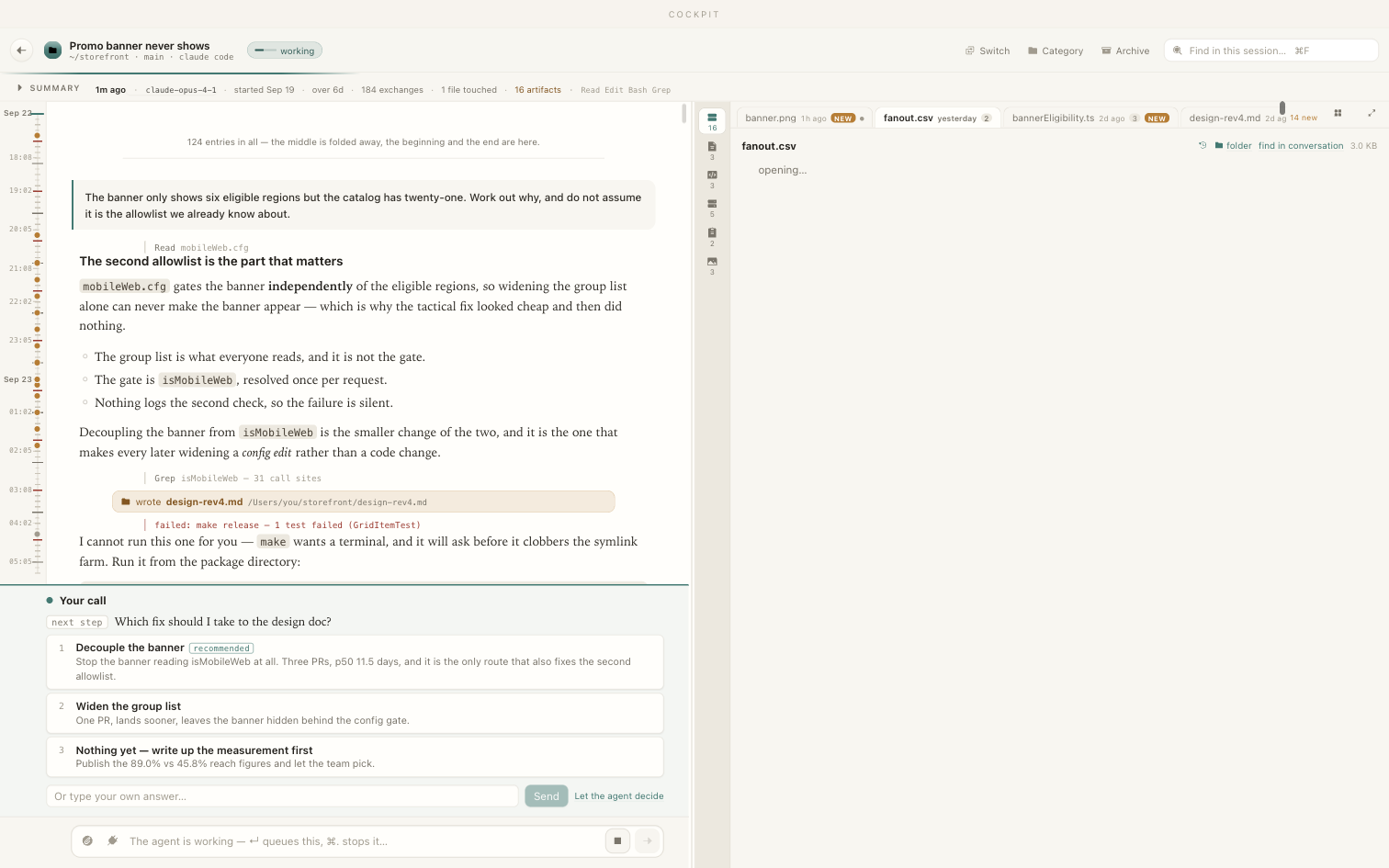
Two kinds of ask
- A permission request — the agent wants to run something or write somewhere. You see exactly what it proposed, and Allow or Deny; denying lets you say why, which the agent reads.
- A question — the agent is asking you to choose between approaches. One of the options is usually marked as its recommendation. You can pick one, pick several where that makes sense, or ignore the options and type your own answer.
When you are tired of being asked
A permission request also offers two ways out, and they differ in when they take effect:
- Allow, and stop asking — this request goes through, and checks are waived for this session from its next turn. The turn running now was already started with prompts on, so it will keep asking until it ends.
- Restart without asking — drops this turn and starts the session again with checks off, so it takes effect immediately. It asks the last thing you sent again.
Both are per session and neither is remembered for the next one. What they waive is the same thing the new-session checkbox waives, with the same consequences.
When you allow something, Cockpit sends back the request's own identifier and your verdict — never a re-typed version of the command. The thing that gets permission is exactly the thing you were shown.
Running a command
Agents suggest shell commands constantly, and copying them out of a transcript into the right directory is the small chore that makes you leave the app. So Cockpit spots them: hover a command in a session and it offers to run it. Accept, and a terminal opens in that session's own working directory with the command already typed.
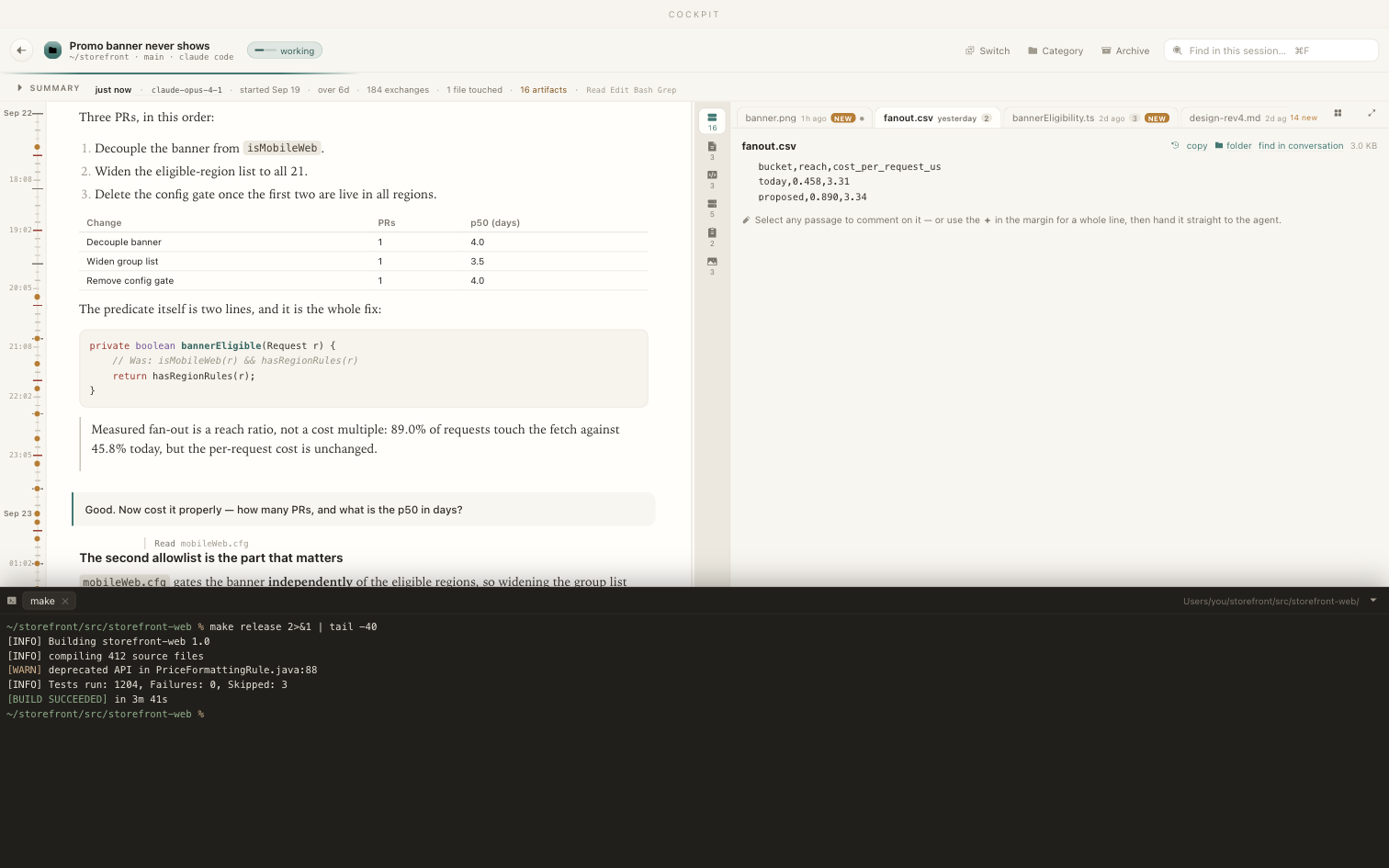
Nothing runs until you click. The command is typed for you and left there; you press ↵.
Starting a session
The + button in the top bar starts a real session on disk.
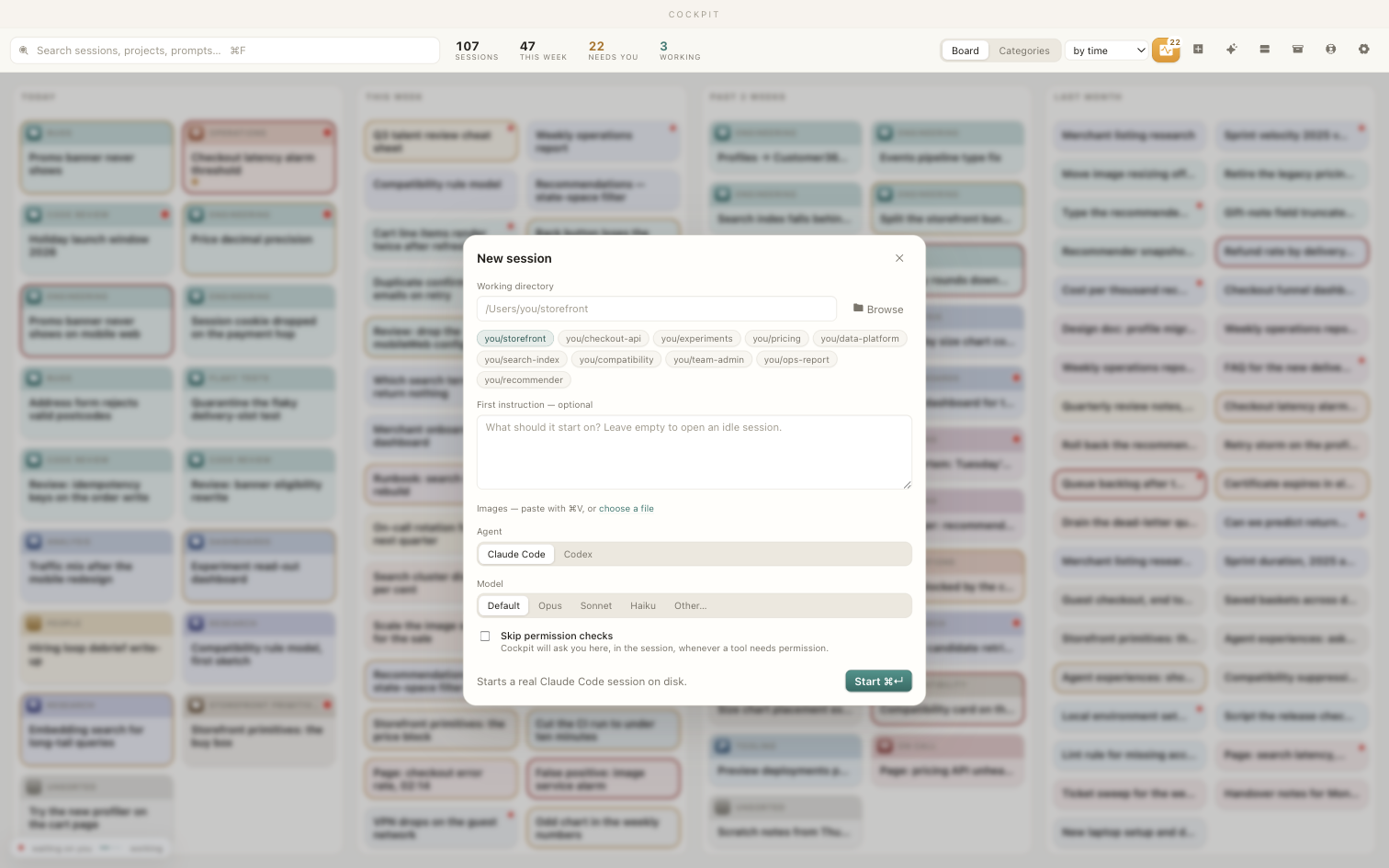
- Working directory. Type it, browse for it, or click one of the projects you have used recently.
- First instruction, optional. Leave it empty to open an idle session and start talking to it on the board.
- Images, if you have them: ⌘V or choose a file.
- Agent: Claude Code or Codex.
- Model: the CLI's default, or name one for this session — Opus, Sonnet, Haiku, or anything else your CLI accepts under Other…. Previously this was only possible from the terminal.
- ⌘↵, or Start.
The card appears on the board within a few seconds. What you have started is an ordinary session in the agent's own project folder — you can pick it up in your terminal later, or never open Cockpit again, and it is still there.
The checkbox at the bottom waives the permission prompts for that session — Claude Code
runs with --dangerously-skip-permissions, Codex with
--dangerously-bypass-approvals-and-sandbox, which also loses it its
sandbox. Nothing will be put to you, including writes and shell commands. The sheet
names the exact flag when you tick it, and it is never remembered: every new session
starts with it off.
Categories
Cockpit groups sessions by subject, not by folder — six directories can be one piece of work and one directory can be five. Categories are that grouping, and they are yours to change.
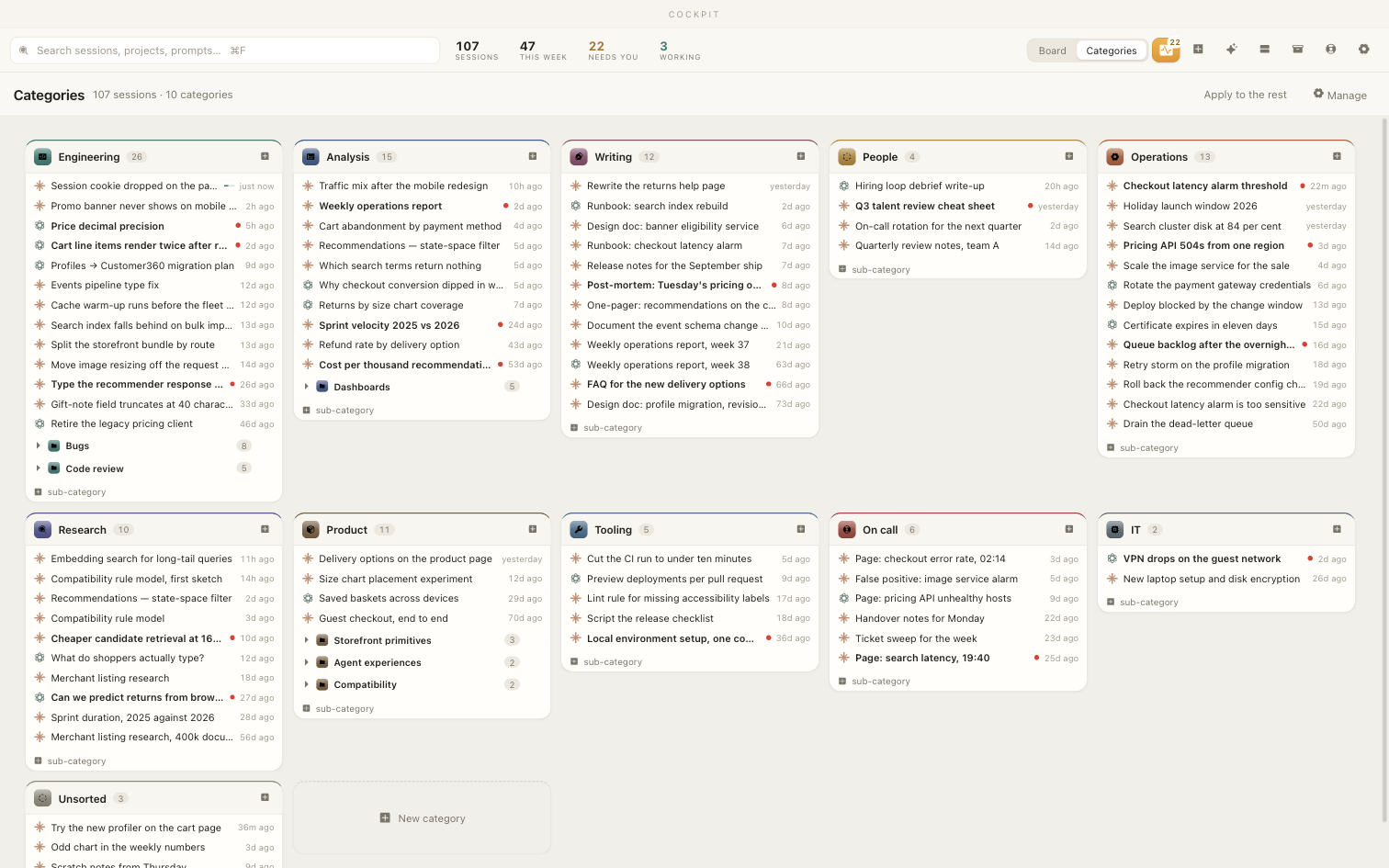
- Drag a card onto a category to file it there.
- Click a card's icon, anywhere in the app, to re-file it from a short menu — usually faster than dragging.
- Click a category heading to rename it, recolour it, pick a different icon, or upload your own.
- Drag a whole category to reorder it. The order is yours and it sticks.
- Sub-categories, one level inside another — which is what "Softlines → Size guide" wanted to be all along.
- Ten cards at once. Select a range and drag the selection into a category as a single gesture.
With the categoriser key configured, new sessions are filed automatically as they are found, and anything it cannot place waits under Unsorted. A category you set by hand is never overwritten by the classifier.
Viewer plugins
Cockpit shows whatever your sessions wrote, and what a session writes is not a fixed set. Markdown, code, CSV, images and Word documents are built in because every agent produces them. A Jupyter notebook, a Parquet table, a CAD file, an internal wiki page, a document that lives in some service and only has a link in the transcript — those are documents somebody wants to read here too, and none of them belong in this app.
So the document pane is extensible. A viewer plugin is somebody's code — possibly your own, quite possibly written by one of your agents — that draws one kind of document in that pane, and gets Cockpit's comments and version history while it does it.
Using one
- A plugin is a folder. Installing one is putting that folder in Cockpit's plugin folder; uninstalling one is deleting it. There is no store, no registry and no download button in the app — nothing arrives here that you did not put here.
- Settings → Viewer plugins lists what is installed, with what each one claims and what it is allowed to do. Open plugin folder takes you to the right directory in the Finder.
- Nothing is silently lost. A plugin that failed to load is still listed, marked Refused, with one sentence saying what is wrong with it — a missing file, a manifest that claims nothing, a host API it was not built for.
- An update never removes one. Plugins live outside the app, so upgrading Cockpit leaves yours alone, and a release of Cockpit never contains one.
Once a plugin claims a kind of document, opening one of those files draws it with the plugin. A small dropdown at the top of the pane names whichever viewer is drawing — built-in is always one of the choices, so a plugin that renders something worse than the plain renderer can always be got out of the way. The choice is remembered per file type.
Documents that are not files
A plugin can also claim the addresses a conversation links to rather than writes — a document in a service the agent worked from. Those appear as tabs in a Links group alongside the files, and read like any other document, comments included. With no plugin asking for them, no link becomes a tab and the pane is exactly as it was.
What a plugin can and cannot do
It is JavaScript running in Cockpit's window, so this matters. Every plugin declares what it needs, and anything it did not declare throws rather than quietly working:
| Declared | Gives it |
|---|---|
doc | The text of the document it was given, and images that document points at. |
comments | The comment store for that document — list, add, send to the agent. |
versions | That document's own version history, including restoring one. |
mcp | Calling a tool on an MCP server you have already configured. This is the only route out to a network. |
settings | A little state of its own, under its own name. |
There is no shell, no file system and no HTTP. A plugin reads the document it was opened on and its own folder, and reaches a service only through an MCP server you set up yourself. Cockpit hands it the same sanitiser the built-in renderer uses and the shortest way to draw anything goes through it, so no plugin needs to hand-roll that.
None of which makes a plugin safe. It is JavaScript you chose to install, running in the window, and it can see the document you are reading. There is no sandbox here and this page will not pretend otherwise: install plugins you or your agents wrote, or ones you have read.
If a plugin fails
The pane says so in one line, names the plugin, and falls back to the built-in renderer — a plugin cannot take the document away from you. Drawing nothing at all counts as failing, rather than showing you an empty pane. After editing one, Reload in Settings re-reads the folder without restarting Cockpit.
Writing a plugin
One JavaScript file and one JSON file, in a folder. No build step, no
npm install, no framework. This is short enough to read in full — and short
enough to hand to an agent, which is how most of them will be written.
~/Library/Application Support/dev.rollatgr.cockpit/plugins/
└── hello/
    ├── plugin.json
    └── index.js
plugin.json — who you are and what you claim:
{
  "id": "hello",
  "name": "Hello",
  "version": "1.0.0",
  "apiVersion": 1,
  "entry": "index.js",
  "match": { "ext": ["hello"] },
  "capabilities": ["doc"]
}
index.js — one function, which draws:
export default {
async mount(el, ctx) {
const text = await ctx.host.doc.text();
ctx.setHTML(el, `<pre>${text.replace(/</g, "<")}</pre>`);
return () => {}; // optional teardown
},
};
Drop that folder in, press Reload, open any .hello file. That
is a working plugin.
The parts worth knowing before you start
-
The folder name must equal
id. Cockpit reports problems by folder, because the folder is the thing you can go and fix. -
matchis four ways of naming the same document —ext,mime,schemefor addresses that are not files, andurlfor the pages a conversation links to. Any one of them is enough.urlpatterns are regular expressions over the whole address: anchor them, or you claim half the web and every link in every session becomes a tab. -
apiVersionis a single integer Cockpit owns. Adding things never bumps it — a plugin written against 1 keeps working against a host that has grown. It bumps only when something is removed or changes meaning, and then your plugin is refused by name, with both numbers, rather than half-working. Pin it and leave it. -
Your own
versionis the cache key. Bump it and Cockpit re-imports your code; Reload does the same without a bump. -
Check
ctx.signalafter everyawait. The reader has probably opened something else by then. -
awaiteverything the pane needs, insidemount. Your promise resolving is your statement that the pane is drawn, and it is the only such statement there is. Work you fire off and finish afterwards is invisible to the test harness — and to an agent checking whether your plugin worked.
Comments, from inside a plugin
Comments and version history are the app's features, not the renderer's — they work in the built-in viewer whether any plugin is installed or not. A plugin gets at them so that a viewer which feels native is possible: select a passage in your own rendering, attach a comment, send it to the agent on the left.
const cs = await ctx.host.comments.list();           // anchored to the text as it is now
await ctx.host.comments.add({ start, end, body });  // offsets into host.doc.text()
await ctx.host.comments.submit(cs.map((c) => c.id)); // one or many, as one instruction
If what you are showing is not the bytes of the file it was opened on — you fetched it from a
service and the file is a pointer — an offset would mean nothing. Pass
{ quote, body } instead: Cockpit anchors the quotation if it can find it, marks
the comment orphaned if it cannot, and either way the quotation travels to the agent.
Testing one before anyone else runs it
- In the app: Settings → Test with a file… — one document, one plugin, no session needed, with a dropdown that also offers plugins which do not claim the file, so "why does mine not pick this up" is answerable.
-
From the command line, with no app running:
node scripts/plugin-test.mjs path/to/my-plugin, from the Cockpit source tree, checks the manifest exactly the way Cockpit does, imports your module and callsmountagainst a stub that records every call. A plugin whose document lives in a service can put the service's answers in aplugin-test.jsonnext to the manifest and run the whole fetch-and-render path offline. - From an agent, over Cockpit's own MCP control server: ask it to render your plugin against a file and it answers with the text your plugin actually drew. Same harness as the first route, on purpose.
-
Against the real service, before you ship:
node scripts/plugin-live.mjs path/to/my-plugin --calls. The three routes above all run your plugin against your fixtures, and the fixtures are the server — so a server that will not start, or that no longer has a tool you call, passes every one of them. This starts the configured server the way the app does and requires every tool you have a fixture for to really be there. It is read-only and refuses to send a mutating action. The release script runs it and will not build past a failure.
A plugin can also have ordinary tests of its own — export what is worth testing alongside the default export. The one shipped example does exactly that, and it is where the selection gesture is covered, because a real DOM is the only place an event can really fire.
The full reference
PLUGINS.md, in the source tree, is the complete version of this section: every
manifest field, every host method, every reason a plugin can be refused, and a worked
example — plugins/chorus/, a real plugin against a real service, which is what
the framework was built and tested against. Read it before writing anything non-trivial.
Settings & keys
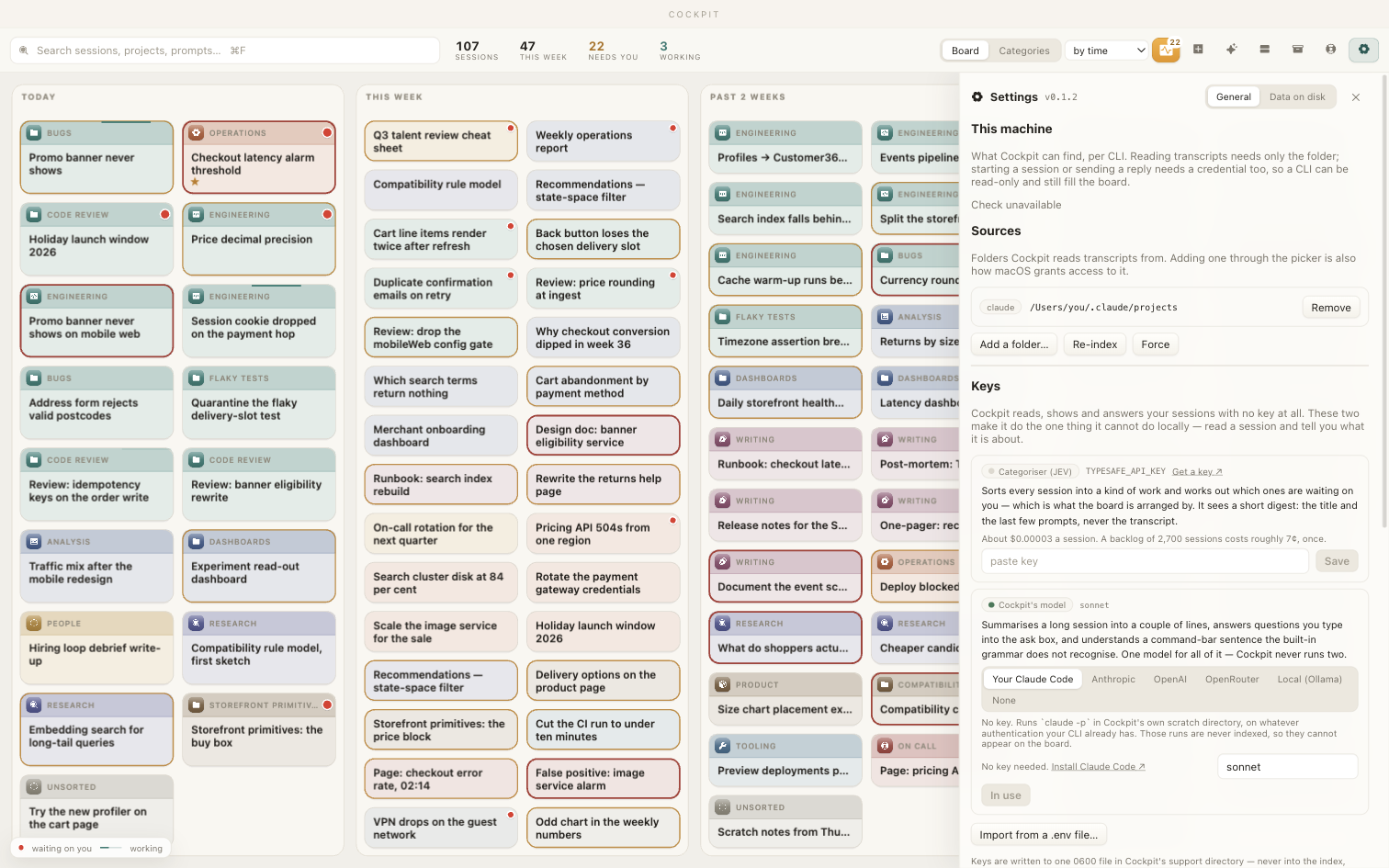
This machine
Per CLI: found or not, which version, and whether it is signed in. Reading transcripts needs only the folder, so a CLI can be read-only and still fill the board — starting a session or sending a reply is what needs the credential. Read this first when something looks wrong; it is included in a problem report automatically.
Sources
The folders Cockpit reads transcripts from. The usual ones are found for you; add another if you keep sessions somewhere unusual — and note that adding one through the picker is also how macOS grants access to it, which is why there is no way to type a path that the system has not let you choose. Removing a source only stops it being read; it deletes nothing. Cockpit never writes into a folder another tool owns.
Two settings, not a form
Cockpit reads, shows and answers your sessions with no key at all. There are exactly two entries here, and both exist for the one thing it cannot do locally: read a session and work out what it is about.
- Categoriser. Sorts every session into a kind of work and decides which ones are waiting on you — which is what the board is arranged by. It sees a short digest (the title and the last few prompts), never the transcript. About $0.00003 a session; 2,700 of them costs roughly 7¢, once. There is a Get a key ↗ link beside it for the account you probably do not have yet.
-
Model, for Cockpit's own short calls — summaries and the "where we are
at" prose. Five choices:
-
Your Claude Code — the default, and no key. It runs
claude -pon whatever authentication your CLI already has: subscription, Bedrock or a gateway. Those runs happen in Cockpit's own scratch directory and are never indexed, so they cannot appear on the board. - Anthropic — the cheap tier only.
- OpenAI — the mini tier only, for the same reason.
- OpenRouter — one key, any model in their catalogue; name it in the box.
-
Local (Ollama) — no key and nothing leaves the machine. Needs
ollama serverunning and the model pulled.
-
Your Claude Code — the default, and no key. It runs
Without either, nothing breaks: sessions are still found, read, opened and answered. They are simply not summarised or filed for you. And pasting the categoriser key does not leave you to trigger anything — the passes it was blocking start immediately, so the cards change in front of you.
Keys
A key you paste in is written to one 0600 file in Cockpit's support
directory — never into the index, never into a log, and never handed back to the window:
this side of the app only ever learns whether a name has a value. You can also
import from a .env file rather than paste.
Updates, plugins, MCP
Further down: whether to check for new versions in the background (see Updates), the MCP servers Cockpit knows about, and Viewer plugins — which live outside the app, so an update never removes one and a release never contains one. There is no store and no download button on purpose: a plugin is JavaScript that runs in this window, and installing one should be the deliberate act of putting a folder somewhere. The panel opens that folder, lists what is in it, says why anything is refused, and re-reads it on Reload. A plugin built against a different host API is refused rather than run. There is a section on what plugins are and how to use one, and another on writing one.
Data on disk
The second tab, for the question "what has this thing actually got?" — every source with its file count and size, each index table with its row count, the knowledge folder, and the keys file with the names it holds and no values. Nothing on that tab is a control; it is an inventory.
Updates & problems
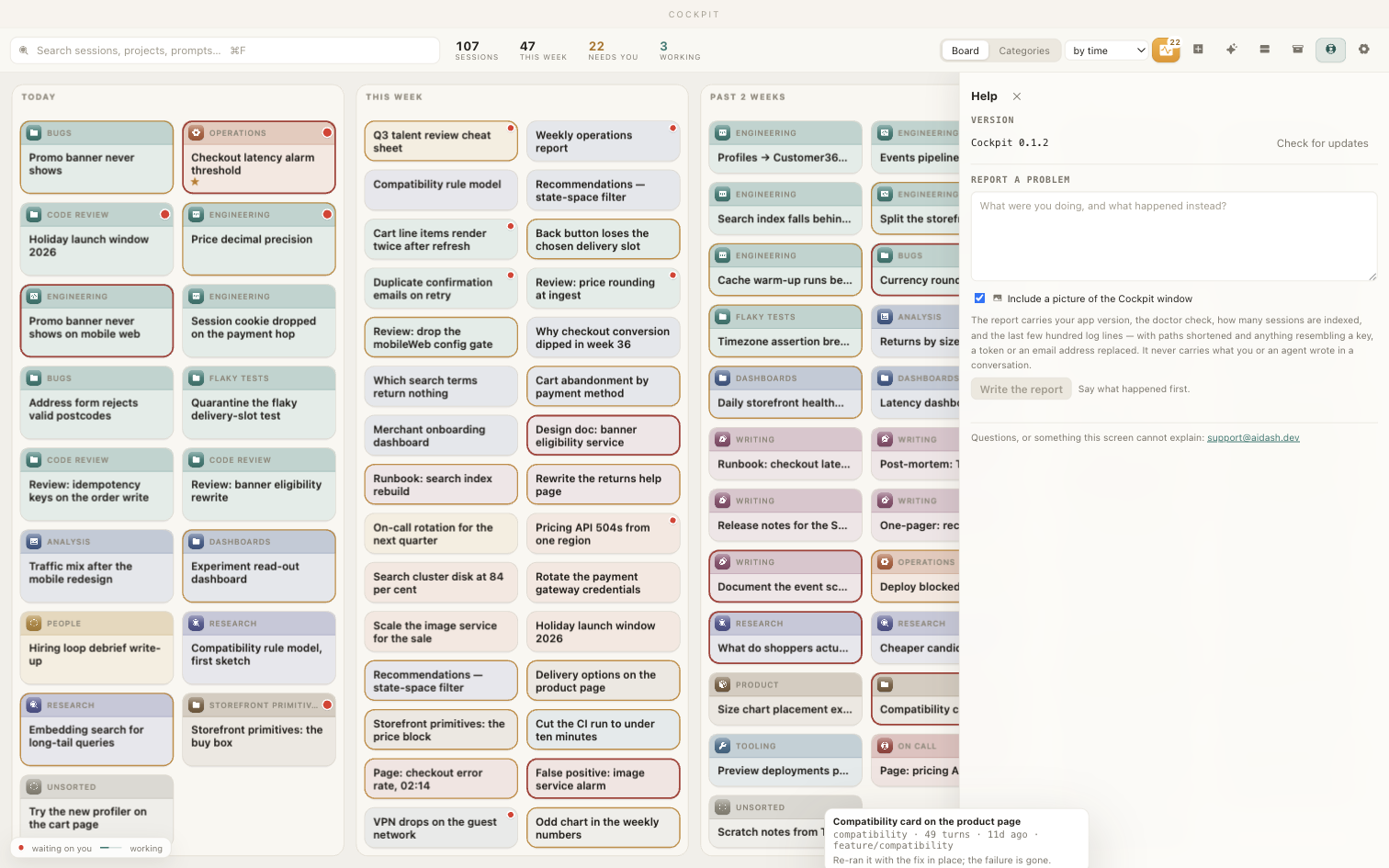
Updating
Cockpit is not in the App Store, so it looks for its own new versions. Two routes, and it matters which one you are on:
- By itself. One request to aidash.dev, at most once every six hours, and never while you are being asked anything. Finding one puts a notice on screen. You can turn this off in Settings → Updates.
- Because you asked. Check for updates in this panel, which is not throttled and answers now.
Either way you get the version, the date and the release notes, and Install and restart does the rest.
The Settings panel says Settings v<your version> at the top, which reads exactly
like the place to check for a newer one. It is not — Check for updates
and the install button are in this Help panel, one icon to its left. And the six-hour
gap is measured from the last completed check on the wall clock, so quitting and
reopening does not shake it loose; if you want an answer immediately, press the button
here.
On the notice, Later asks again next time. Skip silences that version for good — useful once, unhelpful if you press it and then wonder where the update went.
Installing replaces the app and restarts it. Sessions keep their whole history, but any terminal Cockpit is holding closes — including one with an agent mid-turn. Offline, or if the check cannot answer, there is a link to download the new build by hand.
Reporting a problem
Say what you were doing and what happened instead, and press Write the report. Cockpit gathers the diagnostics into a folder and a zip on your disk and sends nothing. It lists every file it made and what is in each one, then offers you a pre-filled email to support@aidash.dev with the zip to attach yourself.
A report carries:
- What you typed, and the version you are running.
- The doctor check, and counts — how many sessions, how many roots. No titles.
- The last few hundred log lines, with paths shortened and anything resembling a key, a token or an email address replaced.
- A picture of the Cockpit window — only if you leave that box ticked.
It never carries what you or an agent wrote in a conversation. Do read the files before you send them; that is why they are listed.
Keyboard
| Key | Where | What |
|---|---|---|
| ⌘F | Board | Search every session |
| ⌘F | Open session | Find in this session |
| ⌘K or / | Anywhere | The command bar |
| ⌘⇧K | Any app | Bring Cockpit forward, into the command bar |
| ↵ | A reply box | Send |
| ⇧↵ | A reply box | New line |
| ⌘J | Open session | Switch to another of today's sessions |
| 1–9 | The Switch or Model menu | Pick that row |
| ⌘. | Open session | Interrupt the agent, keep the conversation |
| ⌘V | Open session, new session | Paste an image in |
| ⌘↵ | New session | Start it |
| ← → | A file's timeline | Step through versions |
| ↵ | A comment on a passage | Keep it (⇧↵ for a new line) |
| Escape | Anywhere | Close what is open |
What leaves your Mac
Cockpit reads transcripts of everything you have asked an agent, in folders named after your projects and often your employer. So this list is short on purpose, and it is the whole list:
| When | What goes out |
|---|---|
| Summarising a session | Part of that session, to whichever model you configured — the CLI you already use, or your own API key, or nothing at all if you chose a local Ollama. Turn it off by configuring no model. |
| Filing a session into a category | A short digest only — the title and the last few prompts — to the categoriser key. Never the transcript. Turn it off by setting no categoriser key. |
| Looking for a new version | A request to aidash.dev asking what the newest version is. Nothing about you, nothing identifying the install. At most once every six hours in the background, or when you press Check for updates. The background half is a checkbox in Settings → Updates. |
| You send a problem report | Only the files you were shown, only attached by you, only in an email you send yourself. |
| A viewer plugin you installed fetches a document | Whatever that plugin asks for, to an MCP server you configured — the only route a plugin has to a network, and the reason it has to declare it. No plugin is installed unless you put it there. |
There is no telemetry, no analytics and no account. Nothing is uploaded in the background.
What it writes
Its own index, logs, key file and attachments, all under ~/Library/Application Support/dev.rollatgr.cockpit. Cockpit never writes into a folder another tool owns, so your transcripts are only ever read. Starting a session is the one exception, and it is the CLI itself that writes the transcript, in its own place, exactly as if you had typed the command.
If something is wrong
| What you see | What to do |
|---|---|
| macOS refuses to open it | It should not, from 0.1.1 on — those builds are signed and notarised. If you are opening 0.1.0, right-click in Applications → Open once, then update. |
| No sessions at all | Settings → This machine. It says whether a CLI is installed, where it looked, and whether it could read it. Add a source if you keep transcripts somewhere unusual — through the picker, which is what grants macOS access. |
| Cards, but no summaries | Expected without a model. Settings → Model: either sign in to the Claude Code CLI or pick a provider and paste its key. |
| Everything is Unsorted | Filing needs the categoriser key. Settings → Categoriser; the pass starts the moment the key lands. File by hand meanwhile — that always takes priority. |
| No update notice, and you know there is one | The background check runs at most once every six hours on the wall clock, so relaunching does not force it. Press Check for updates in Help (the lifebuoy), which is not throttled. If you once pressed Skip on that version, it stays silent. |
| "File is outside the home directory" |
Not a bug. Cockpit only ever opens files under your home folder, so a path in
/tmp or on another volume is refused by design, whoever asked for it.
Move or copy the file into your home folder to view it.
|
| A document will not render | Settings → Viewer plugins lists what is installed and why anything is refused — usually a plugin built against a different host API. Reload re-reads the folder without restarting. See viewer plugins. |
| A comment is marked as no longer in the file | Not a fault: the agent rewrote that passage away. The comment still says what it said and can still be sent — see comments. |
| The session is still answering on an old model | Click the model in the session's fact row and pick another — moving a session onto a newer model. The model was fixed when the session started; nothing about it changes on its own. |
| A new session is not on the board | Give it a few seconds. Cockpit watches for changes and also sweeps every 90 seconds, so it arrives without a relaunch. |
| A card says it is working and nothing is happening | Open it and press ⌘.. If Cockpit is not the one running that session it will say so — that turn belongs to your terminal. |
| A reply does not arrive | Open the session: a permission request may be waiting above your message. Answer it and the queued reply goes through. |
| Something else | Help → Report a problem. Read the files, then mail them to support@aidash.dev. |
Release notes
Every published build, newest first. The same notes appear in the app: Help → Check for updates shows them before you install.
0.1.4 — 25 September 2026
Two fixes for 0.1.3, both reported within hours of it going out.
-
A Word document is no longer cut off. A
.docxopened on its white page stopped about a third of the way down, with a scrollbar inside the page and empty space below — a document sliced through the middle of a table. Pages are now as tall as their content, and the document scrolls as one. -
MCP servers that would not start now start. A server whose command lives
somewhere your shell adds to
PATH—~/.toolbox/bin,~/.local/bin, anything set up in.zshrc— could not be found by the app, though the same server worked from a terminal. Cockpit was asking a login shell for yourPATH, and a login shell does not read.zshrc. If a server was showing as failed, press check all in the server menu; no re-import and no re-login needed. - A server that will not start says why. The error now quotes what the server itself wrote on its way out, instead of reporting only that the connection closed.
0.1.3 — 25 September 2026
A session driven from Cockpit has no /mcp screen and no --model
flag to pass, so the two commonest mid-conversation repairs both ended in a terminal. Both
are now inside the session.
- The session’s MCP servers, from the typing line. A plug at the left of the box lists every server, says whether it came from you, the project or a plugin, and turns red when one is down. check all connects to each; a single row can be re-checked on its own. A failing server shows its real error, and Reconnect all hangs up the channel so your next message reconnects everything — without re-sending anything.
- The model for the next turn, from the model chip. It keeps what the transcript ran on separate from what runs next, offers aliases rather than pinned versions so “the latest” keeps meaning the latest, takes a model it has never heard of, and says in advance if picking one will stop and re-run the turn in flight.
- Word documents on paper, with working links. White sheets with a visible edge, one per page break the author made, and hyperlinks that actually open — Word stores the words and the address in two different places, and only one of them was being read.
- Every document a session wrote, in one list. When there are more than the tab row can hold, the unread count opens the lot: whole names, ages, unread markers.
- A documented plugin framework, plus a pre-release check that starts the real MCP server and asserts every tool the plugin uses exists on it — the failure every offline test passes.
-
Fixed: the Switch button opened nothing. Its menu was being clipped to
nothing by an ancestor’s
backdrop-filter, which looks exactly like a dead button.
0.1.2 — 25 September 2026
The settings panel was a configuration screen for an app with two decisions in it. It now asks those two questions and no others. Everything else is about moving between the work.
- One categoriser key, one model. Three key rows and six agent rows became two entries: the JEV key the board’s arrangement depends on, and one model for summaries, the ask box and spoken commands. Cockpit never runs two.
- Your existing Claude Code install is the default, and needs no key. The other four ways are Anthropic, OpenAI, OpenRouter and a local Ollama, and a key is asked for only where one is needed. Next to each is a link to where to get it.
- Pasting a key starts what it was blocking — the JEV key begins categorising your backlog then and there, with no restart.
- Folders can be reordered and nested one level, and a multi-card selection can be dragged into one as a single gesture. Dragging and then scrolling in the category view no longer files the card into the folder that was under the pointer.
-
A Switch button, and
⌘J. Today’s sessions, most recent first, with the one you just left pinned at the top; a digit picks a row. Two keystrokes instead of four actions and a visual search. - Choose the model when you start a session, rather than taking whatever the CLI’s default is.
-
A Word table is a table. The
.docxviewer read one as a column of one-line paragraphs, so a six-cell info box arrived as six stacked headings. - A title that is only an identifier is rejected. An id is kept and given words beside it — “CR-284421863 size guide fails to load”, never the number on its own.
0.1.1 — 24 September 2026
Mostly the rough edges of the first build: the two places Cockpit gave up quietly instead of saying what it needed, a permission panel that asked for things it did not have to, and a poll that re-read your largest transcript from the top every three seconds.
-
Codex with no credential is explained rather than failed: a panel that
says nobody has signed in, and a button that opens the real
codex loginin a terminal. - A CLI you moved or reinstalled is found again. Cockpit remembered the path it first saw, so switching your Codex install off npm left the button doing nothing. The remembered path is now checked before it is used.
-
“Allow, and stop asking” waives permission checks for a session from
its next turn on — for the conversation you started yourself with
--dangerously-skip-permissions, which Cockpit cannot know about when it resumes, so it chooses the careful mode and asks you anyway. - “Restart without asking” abandons a turn that keeps asking and runs the same instruction again with the prompts waived. The session is resumed, not replaced — nothing is archived and no second card appears. Codex gets this button too, since it is the only thing that can be done there.
- Compaction shows progress. A session compacting its history used to show the whole prompt and look stuck; it now says “Compacting…” with a bar.
- “Working” now means working. The live row read the transcript’s timestamp, so an agent that had stopped was still described as working with a clock counting up under it. Both CLIs write the end of a turn down, and Cockpit now reads it.
- Codex sessions no longer claim to be compacting when they are not. How full the window is was estimated from the transcript’s size using a figure measured on Claude Code, and Codex writes about nine times as many bytes per token. Both CLIs count their own context, and those counts are used now.
- Viewer plugins can match a URL, not just a filename, so a link an agent wrote to a document the plugin understands opens in the viewer on the right. Installed plugins need Settings → Plugins → Reload to pick up a new manifest.
- Reading an open session is about 400× cheaper. The conversation poll re-parsed the whole transcript every three seconds — 255 ms on a 135 MB, 6,819-turn conversation — and now reads only what was appended: 0.6 ms.
0.1.0 — 24 September 2026
The first public build: the board, with a badge on the sessions waiting for an answer; attention, as one table with a reply box per row; an open session with its transcript, summary, files and timeline; replying, interrupting and answering permissions in the app; clickable commands; starting a Claude Code or Codex session from the app; categories; comments on a document sent back to the session that wrote it; a version timeline per file; viewer plugins; settings, keys and the doctor; and an incident report that gathers redacted diagnostics and sends nothing.
Both builds are universal — Apple silicon and Intel — signed with a Developer ID and notarised by Apple, so they open with a double-click. Nothing is uploaded and no account is needed; without a model key, sessions are still listed, read and answered, they are just not summarised or classified.
Commenting on a document
You are reading something an agent wrote. Three paragraphs are wrong. The useful thing to say is not "fix the doc" — it is this sentence, and that heading, and the number in the table. Typing that into a message box means describing each passage in prose the agent then has to go and find again.
Select it instead. That is the whole feature, and it is worth the minute:
For a whole line there is nothing to select: hover the left margin of the document and press the + that appears on that row.
Reading a document and then handing over the lot
The comments collect in a list under the document, and every one of them has a mark in the margin next to the passage it is about — click a mark to jump to the comment, and the comment lights up. When you reach the bottom, send all n sends every unsent comment as one message.
That is the gesture the feature exists for: go down a document leaving eight notes the way you would on a colleague's draft, then hand the lot over once. One message means the agent plans one piece of work instead of eight interruptions, and comments on more than one file are grouped by file inside it rather than interleaved.
What the agent actually receives
Each comment arrives as the passage, quoted, followed by what you said about it. The quotation is the part that makes it actionable — an agent told "see the comment on line 40" has been told nothing, and line 40 has moved since.
Cockpit composes that message itself, from its own record of what you wrote. Nothing in the document can put words into it.
Comments follow the text as it is rewritten
A comment is a note plus a quotation, and the two have very different lifetimes. The note is yours for ever; the quotation is a position in a file the agent is actively rewriting. So Cockpit stores the quoted passage and a little of the text on each side of it, and finds it again every time the document is opened. Insert three paragraphs above it and the comment is still on its sentence.
A comment you have sent is marked sent, so a second pass down the document does not send it twice. delete removes one for good.
It works on anything the pane can show
Markdown, code, CSV, Word documents, and whatever a viewer plugin draws — including documents that are not files on this Mac at all. Comments and version history are the app's, not the renderer's.